Matcha Download / Install Guide
Step 1: Redeem your key in the Redeem Key channel.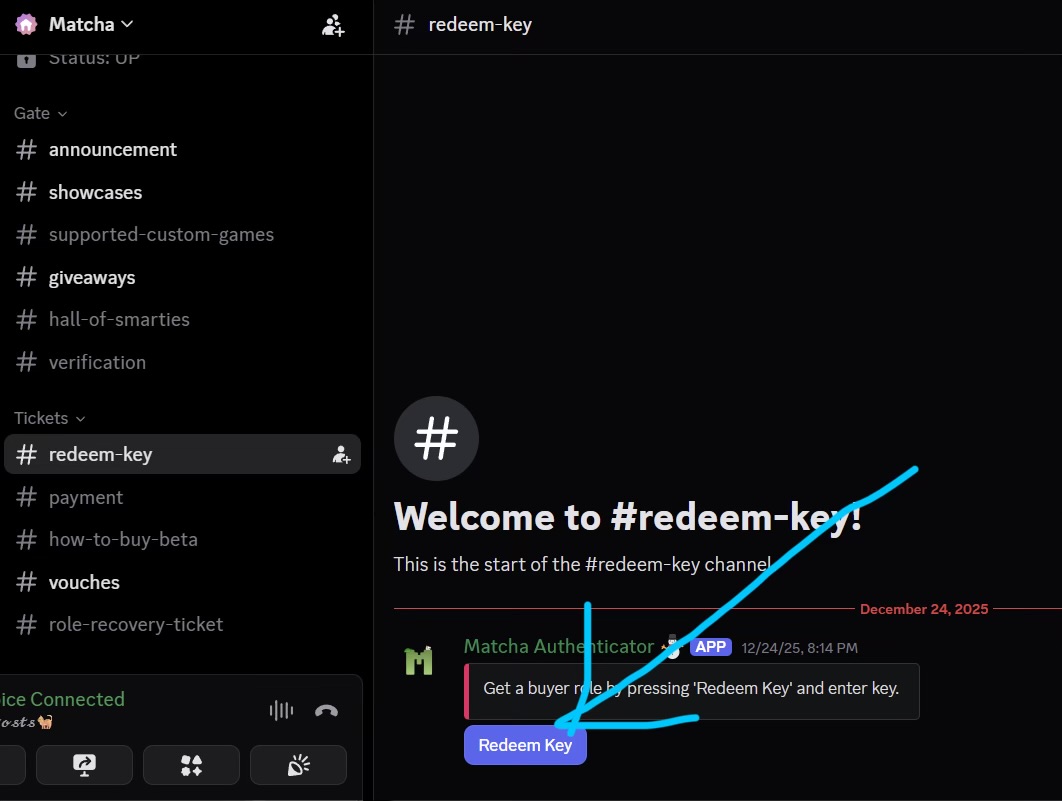
Step 2: Go to the Register channel.
Step 3: Download all dependencies:
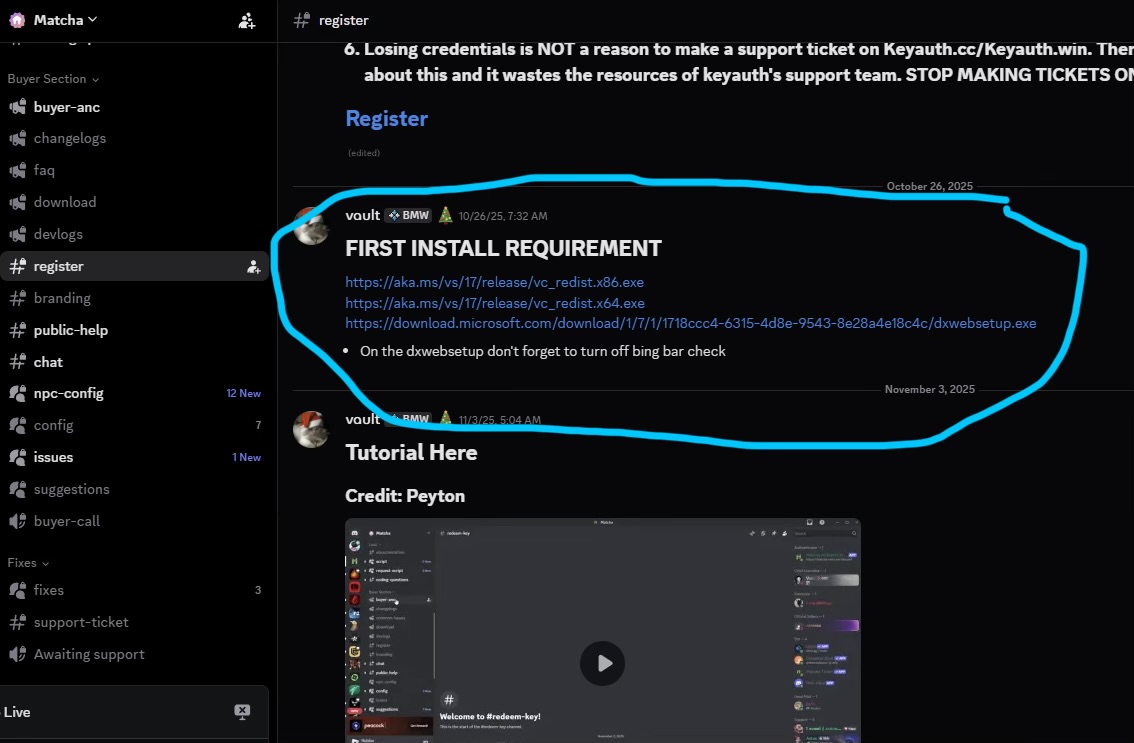
- VC Redist x86
- VC Redist x64
- DirectX Web Installer
Step 4: Install all dependencies (DirectX errors are OK).
Step 5: Click Register.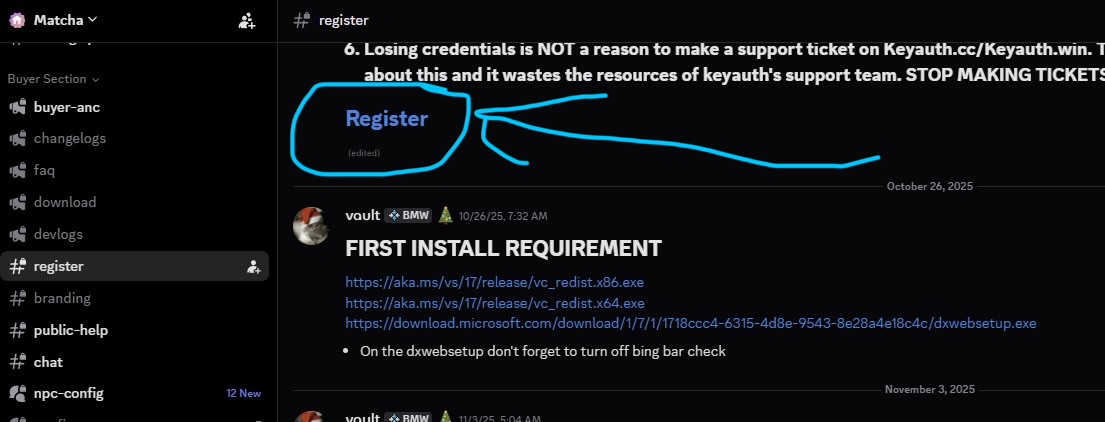
Step 6: Click Sign Up.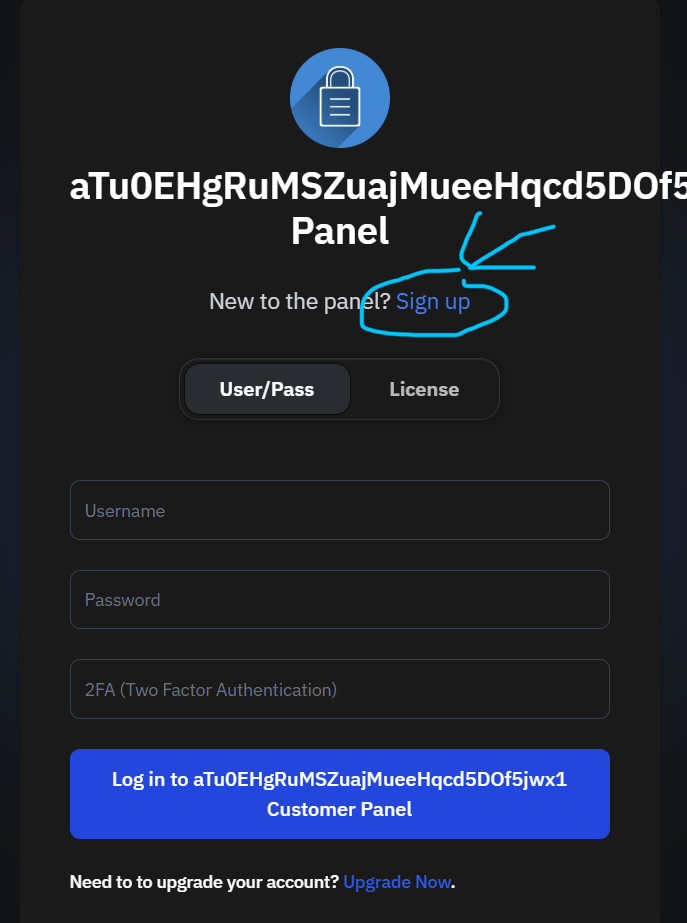
Step 7: Enter username, password, and license key.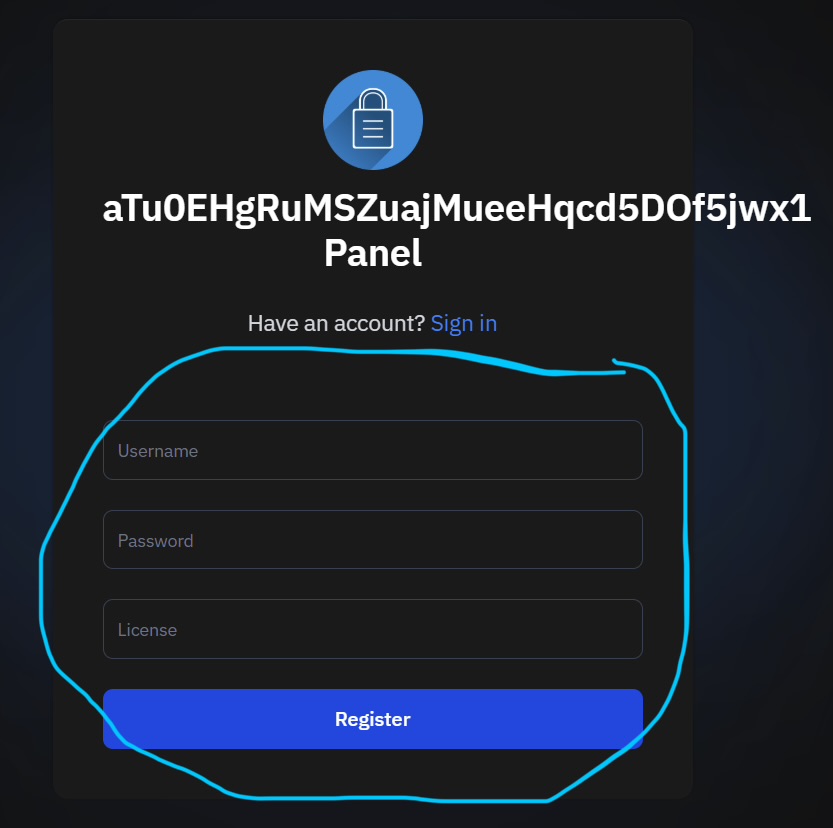
Step 8: Download Matcha files.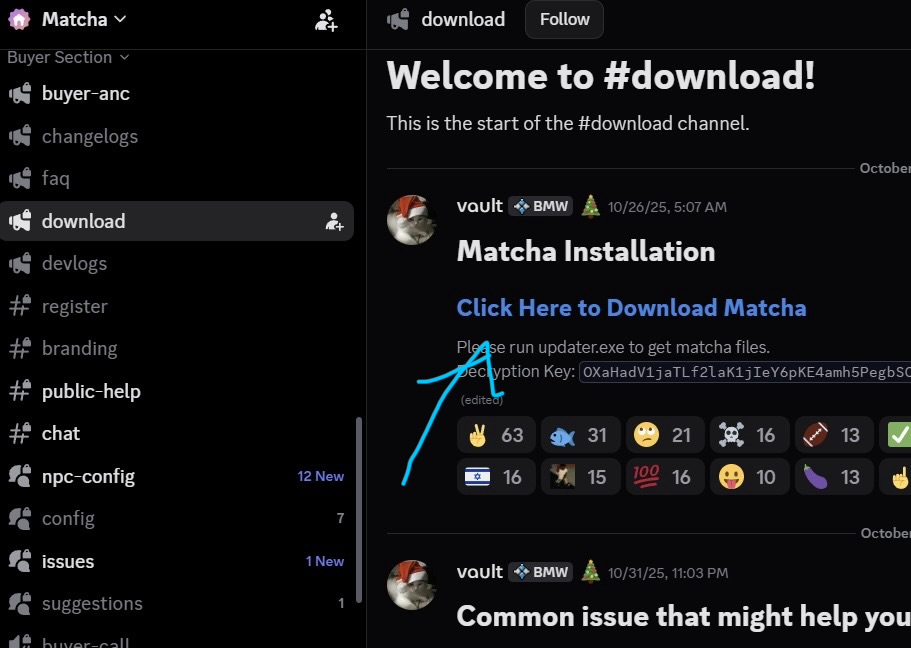
Step 9: Right click Matcha archive.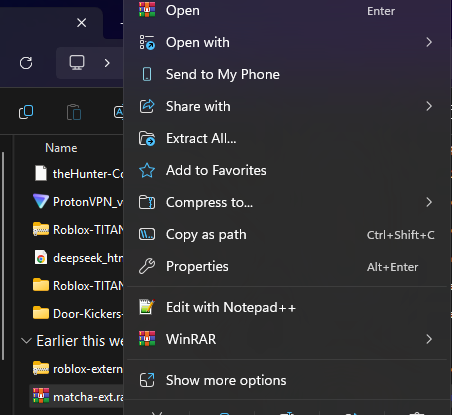
Step 10: Open with WinRAR.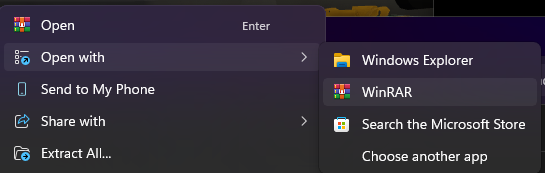
Step 11: Click Extract To.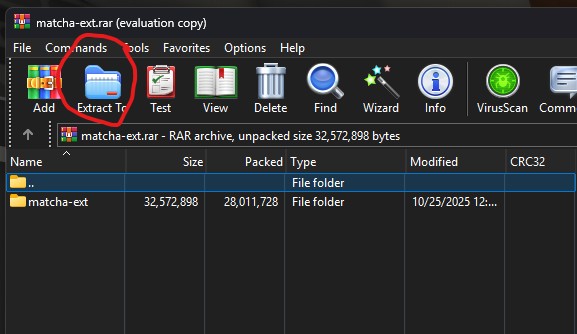
Step 12: Click OK.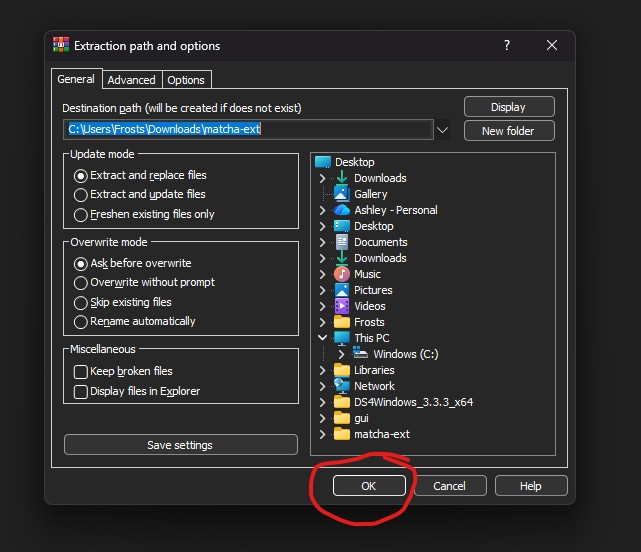
Step 13: Open extracted folder.
Step 14: Open Virus & Threat Protection.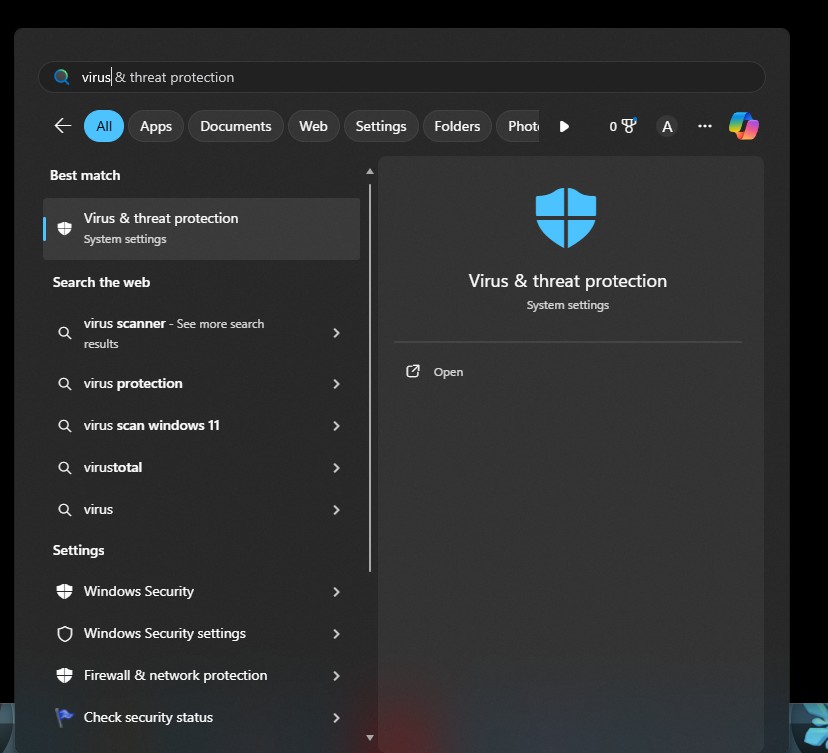
Step 15: Manage settings.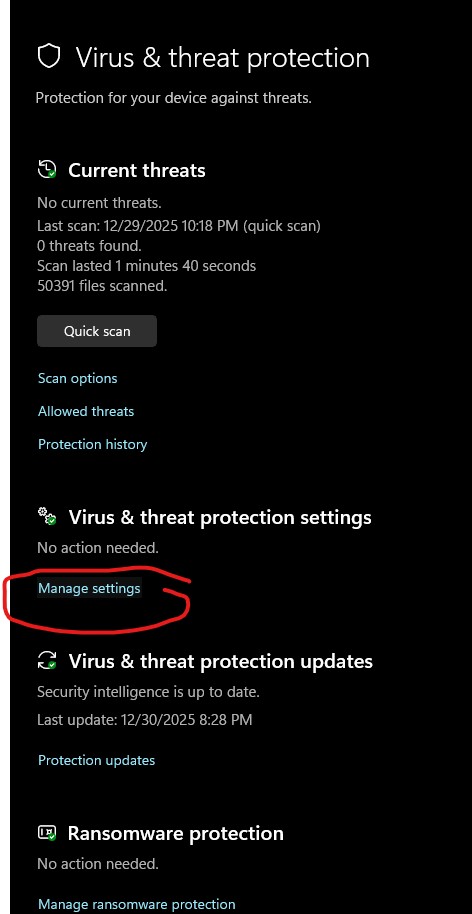
Step 16: Scroll to exclusions.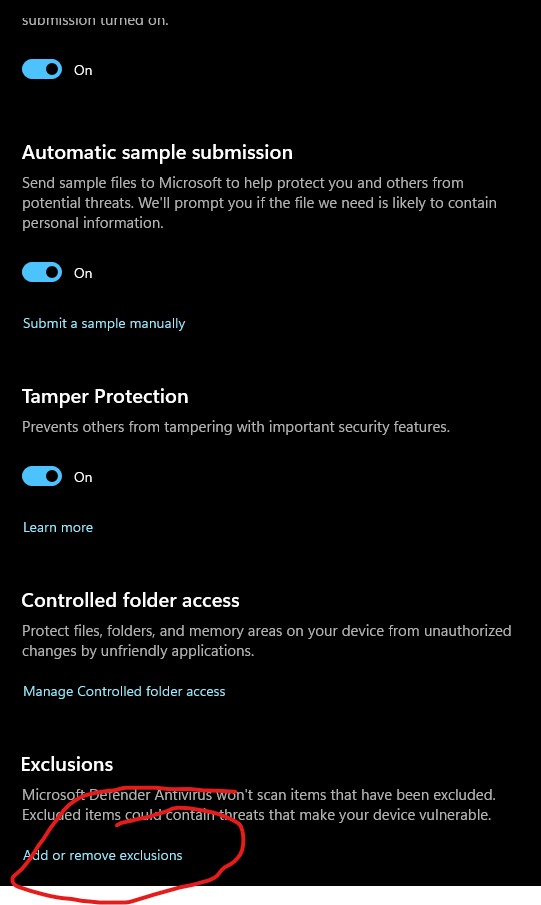
Step 17: Add exclusion → Folder.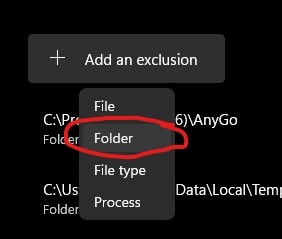
Step 18: Run updater.
Step 19: Run Map.
Step 20: Restart your PC.
Step 21: Run loader.
Step 22: Sign in.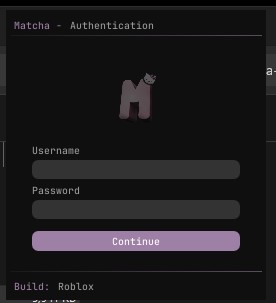
Step 23: Open Roblox and run app.exe.